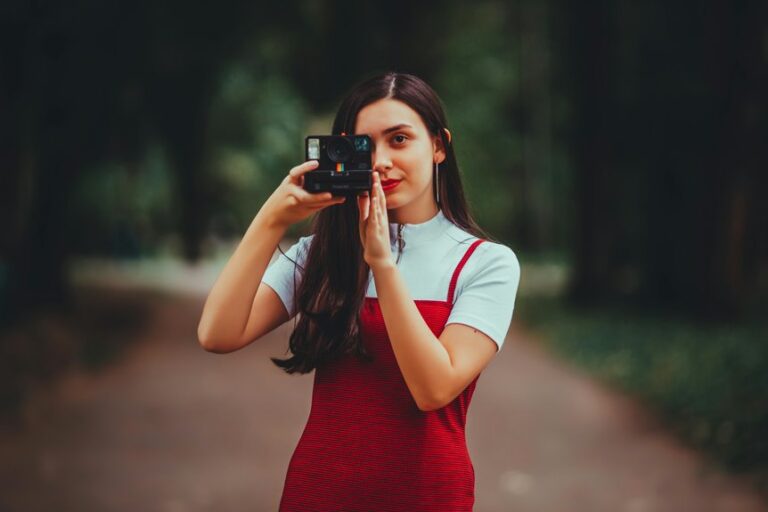



White balance fixes color so skin looks natural and the whole photo feels right. It adjusts your camera to match the light in the scene. Use presets, Auto White Balance, or a custom setting for better color. The best choice depends on the light around your subject.
What Is White Balance?
What, exactly, is white balance? It’s how you tell your camera what should look truly white, so everything else feels natural. Once you understand it, you’re not fighting your image; you’re guiding it.
White balance helps you manage color temperature, so a room’s warm lamp glow or cool daylight doesn’t trick your photo. Because different lighting effects change the way colors appear, the same scene can look calm, chilly, or oddly yellow. You get to choose the balance that fits the moment, and that choice helps your work feel steady and welcoming.
With a little practice, your photos stop looking random and start feeling like they belong together, just like you do when everything clicks.
How White Balance Affects Skin Tones
White balance can quickly change how your skin looks in a photo, even whenever everything else seems right.
In case the image leans too cool, your skin might look pale or greenish, and in case it leans too warm, it can look orange or overly red. Through adjusting temperature and tint, you can keep skin tones looking natural and true to life.
Skin Tone Shifts
At the moment the white balance is off, your skin tones can shift fast, and the change can feel surprisingly harsh. You could see warmth turn muddy or healthy color fade into a flat cast. That’s why undertone detection matters so much.
Once you read your own skin correctly, you can spot whether the light is pushing you off track. Exposure impact plays a part too, because darker areas can hide natural color and brighter areas can make skin look washed out.
Temperature And Tint
Should your white balance be close, temperature and tint work together to keep skin looking natural instead of strange or tired. You’re not just fixing color; you’re protecting the feeling of being seen clearly. Temperature calibration warms or cools the image, so a face can shift from healthy to icy in a second. Tint adjustment then cleans up green or magenta casts that make people look off.
| Control | Direction | Skin result |
|---|---|---|
| Temperature | Warmer | Softer glow |
| Temperature | Cooler | Bluer, flatter skin |
| Tint | More magenta | Brings life back |
When you balance both, your subject keeps believable cheeks, lips, and undertones. That’s how you help your photo feel welcoming, not awkward, even in tricky light.
How to Use Auto White Balance
Auto white balance can be a quick fix if the light is steady, like outdoors or in a room with one main lamp. You can trust it more whenever your scene has neutral colors and no weird color casts fighting each other.
In mixed light, though, it might get confused and leave your skin tones looking a bit off, so you’ll want to check it closely.
When Auto White Balance Works
During the period the light is steady and simple, Auto White Balance can do a solid job and save you a lot of guesswork. You’ll often see it work well in open shade, indoor rooms with one main lamp, or scenes where camera metering reads the scene without strong color casts.
It usually handles calm, even light and keeps your skin from drifting too blue or too warm. Whenever ambient influences stay mild, your shots feel natural fast, and you can keep moving with the group instead of fiddling with menus.
Provided you’re shooting fast, this setting gives you a friendly starting point. It’s also handy whenever you want a clean base before making small edits later. That way, you stay in control and keep the mood intact.
When To Trust It
You can trust white balance more often than you could believe, but only provided the light stays honest and fairly simple. In that kind of scene, Auto White Balance can keep your colors steady while you stay focused on the moment.
In case your camera calibration is solid, the result usually lands close to true skin tones. That’s especially helpful whenever lighting consistency is strong, like daylight, one lamp, or a shaded room with one clear source. You’ll save time, and your photos will feel natural instead of overly warm or cold.
Still, you should glance at the preview and watch for odd color shifts. Should the scene changes, let your eyes guide you, because your gear likes a little teamwork too.
Limits In Mixed Light
During a scene mixes daylight, window light, and a lamp, white balance gets a lot less sure of itself. You can feel the tug from each source, and Auto White Balance has to guess which one should lead.
In mixed light, color mixing can make skin look uneven, with one side warm and the other side cool. That’s why you might see Auto shift, then shift again, as the camera chases changing light sources.
Once the room stays steady, it can help. Whenever the mix changes fast, it could miss the mark and leave you with odd tones.
In the event that happens, trust your eye, lock one source, or set a custom balance so your subject feels natural and seen.
Which White Balance Preset to Use in Each Light?
Which white balance preset should you use in each light? You can start with Daylight for sun, Shade for open shadow, Tungsten for warm bulbs, and Fluorescent for office tubes. Once your lighting matching is close, your colors feel natural, and preset accuracy gets better right away.
In case you’re outside on a cloudy day, Cloudy can keep skin from looking too cool.
In mixed rooms, choose the preset that fits the strongest light initially, then check faces and white objects. That small habit helps you stay in control without guesswork.
Auto can work in a pinch, but it might jump around between shots. So, trust the preset that fits the scene best, and you’ll give your skin tones a fair, friendly starting point.
How to Set a Custom White Balance
A custom white balance gives you a cleaner, more accurate starting point whenever presets just aren’t quite right. You can set it fast and feel more confident in the shot.
Place a gray card or other neutral reference cards under the same light that hits your subject. Fill the frame with it, then use your camera’s custom calibration menu or WB target. Take the reading, confirm the result, and keep shooting.
Should the light changes, repeat the process so your colors stay steady. This helps you keep skin tones natural and your scene consistent, so you’re not second-guessing every frame.
With a little practice, you’ll move through setup smoothly and feel like you belong in control of the light.
How to Fix White Balance in Editing
Suppose your photo looks too blue, too yellow, or just plain off, you can usually fix white balance in editing with a few careful moves. Start with the eyedropper tool on a neutral white or gray spot, then watch the temperature and tint sliders until skin looks calm and true.
Next, check the vector scope, because it helps you see whether skin is sitting near the right line. In case the image still feels dull, use a small exposure increase before you fine tune color.
Then add gentle saturation control so faces stay lively, not loud. Keep comparing the frame to what feels natural, and trust your eye. With a little patience, you can bring the whole photo back into balance and feel good sharing it.
Common White Balance Mistakes to Avoid
Even after you’ve fixed white balance in editing, it’s easy to make a few small mistakes that throw skin tones off again. You’re not alone provided this happens; it catches many creators.
- Don’t trust one screen. Check skin on a calibrated monitor, then compare with a white balance reference.
- Don’t push temperature too far. A tiny move can make faces look sickly or too orange.
- Don’t ignore exposure. In case skin is too dark or bright, white balance calibration won’t save it.
- Don’t skip the shot check. Use a gray card or slate while filming, so you’ve got a clean starting point.
When you slow down, you protect the warm, honest look your people deserve, and your images feel like they belong together.
Frequently Asked Questions
Why Does White Balance Sometimes Make Skin Look Green?
White balance can make skin look green when the light source and camera settings do not match, causing a color cast. The camera may correct one tint too strongly and shift skin toward green, especially under mixed lighting or fluorescent lights.
How Can I Use Kelvin for More Accurate Skin Tones?
Set Kelvin manually to match your light’s color temperature, then adjust it until skin tones look natural. Start near daylight, then shift warmer or cooler as needed and rely on what you see.
What Tools Help Check White Balance on a Vector Scope?
A vectorscope, gray card, ColorChecker, and white balance reference card help verify balance. Use them with color calibration and a waveform monitor to catch tint shifts and keep skin tones natural.
Can Overexposure or Underexposure Affect White Balance Accuracy?
Yes, overexposure or underexposure can throw off white balance accuracy, creating exposure related tonal shifts that make skin appear too bright, too dark, or oddly colored. You will get truer tones by exposing carefully and checking whites.
Should I Correct White Balance Before Adjusting Saturation?
Yes, you should fix white balance first, because it sets the color base for everything else. Once the color temperature is right, saturation adjustments stay more accurate. Skin tones will look more natural, and the final edit will feel more balanced.