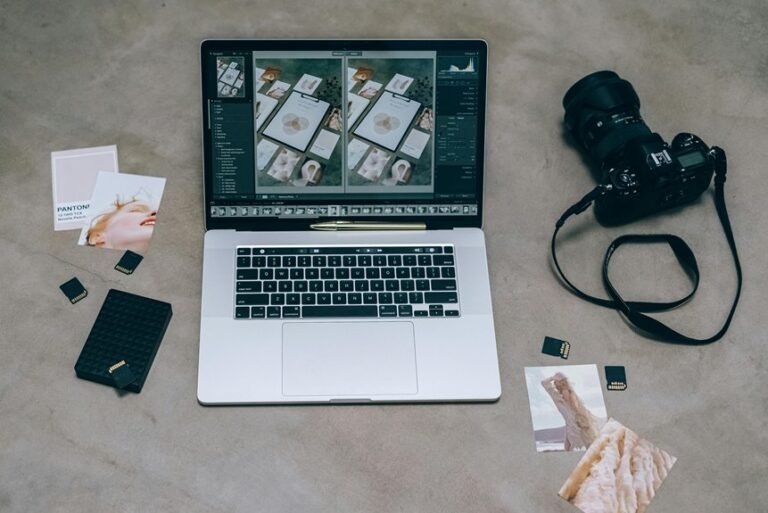

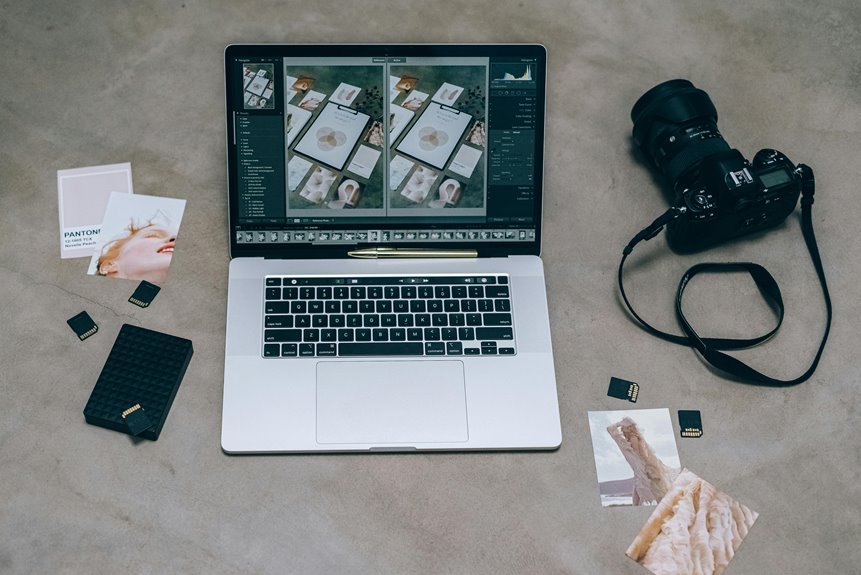

Editing a full photo shoot gets faster with a clear workflow. Start by organizing imports, culling fast, and editing similar images together. Presets, shortcuts, and saved export settings cut repeat work and save time. A few simple changes can turn a long editing session into a smoother, faster routine.
Set Up Your Editing Workflow First
Before you touch a single slider, set up a clear editing workflow that matches how you shoot and how you deliver photos. In case your process fits your style, you feel more confident, more consistent, and more connected to the kind of photographers you want to grow with.
Start at capture, because camera optimization saves you later. Set exposure with your dials, check the histogram, refine composition, and fix white balance in camera. Also remove background distractions prior to pressing the shutter. That way, your edits stay focused and clean.
Next, build simple performance tweaks into your routine. Learn a few shortcuts, keep your preset panels tidy, and turn on GPU acceleration provided your system supports it. Small steps like these cut friction, protect your energy, and help you edit with a calm, steady rhythm every single session.
Organize Photos on Import
Once you’ve built a steady editing routine, the next win arises from organizing photos the moment they enter your computer. You save time, lower stress, and make every session feel more under control.
Start with a clear folder hierarchy that fits how you actually shoot, such as year, month, event, or client. Then use consistent naming so files still make sense weeks later, not like mysterious strangers in your catalog.
From there, keep your import choices simple and repeatable. Add metadata, basic corrections, and keywords right away so your library feels welcoming and easy to trust. Separate shoots according to location, team, season, or lighting condition if that helps your future self.
Once your files land in the right place from the start, you feel like part of a smooth, capable editing rhythm.
Cull Photos Faster With Smart Filters
You can speed up culling right away once you use flagging and rating shortcuts instead of clicking through every image.
Then, smart metadata and lens filters help you narrow the set fast, so you only review the photos that matter.
That means you spend less time hunting and more time choosing your best shots with confidence.
Flagging And Rating Shortcuts
Although culling can feel endless after a long shoot, a few smart flagging and rating shortcuts turn it into a fast, calm system you can trust. You don’t need more willpower. You need a rhythm that helps you feel on top of the work.
Begin with a quick reject pass. Use arrow keys to move, press X for misses, and keep going. Then enable Auto Advance so each choice pushes you forward. That small shift enhances flagging efficiency right away.
Next, apply simple rating strategies. Tap numbers for keepers, stronger frames, and final selects. Stay consistent so your system feels familiar every time.
In case your software spots closed eyes or soft focus, use it to clear obvious rejects first. Soon, your best images rise together, and editing feels lighter, faster, and more under control each session.
Metadata And Lens Filters
Fast flagging gets even better once you let metadata and lens filters narrow the pile prior to you start making choices. You save energy whenever your catalog shows only the files that match one camera, lens, date, or shoot condition. That means fewer distractions and more confidence right away.
Start with metadata tagging during import, so your photos already carry useful details. Then filter using lens, focal length, keyword, rating, or capture time to group similar frames together. You’ll spot duplicates faster, compare bursts more clearly, and stay in a flow that feels calm and shared.
Lens filters also help whenever you want to review images needing lens correction or check how one lens performed across a session. With smart filters, you’re not sorting alone. Your system supports you.
Use Presets for Faster Edits
Start through building presets into your import and editing routine, because that’s where a huge chunk of time quietly slips away. Whenever you add develop presets during import, you give every photo a clean, consistent starting point. That helps you feel organized, confident, and in control from the initial click.
From there, create preset variations for the sessions you shoot most. You could build one for bright outdoor portraits, another for cloudy light, and another for indoor warmth.
Save lens corrections, chromatic aberration removal, white balance choices, and gentle tone adjustments inside them. Lightroom makes this simple with the plus sign in the Develop module.
As your preset library grows, your editing feels less scattered and more like a system you can trust, and that steady rhythm helps you stay in the zone.
Batch Edit Repeating Adjustments
Once you’ve applied a solid preset, batch editing becomes the next big time-saver because you don’t need to rebuild the same look on every photo. You can move through a set with more confidence, understanding your gallery will feel connected and consistent.
Start from grouping images with the same scene conditions, then handle repeating fixes like exposure, contrast, white balance, and lighting correction in batches. This keeps your pace steady and helps your work feel polished, not pieced together.
For smaller fixes, use quick copy and paste steps on repeated color or tone issues. Then return to single images only once they truly need selective adjustments, like brightening faces or softening a hot background. That way, you stay in rhythm, protect your style, and spend more time feeling like part of a smooth, capable editing flow.
Sync Edits Across Similar Shots
Once your photos share the same light, angle, and camera settings, syncing edits lets you move through them with far less effort and much more trust in the final gallery. You don’t need to rebuild each image from scratch. Instead, you create one strong edit, then apply it across matching frames to keep color consistency and save energy for finer choices.
From there, review the synced group and make small corrections where expressions, skin, or backgrounds shift. This keeps tonal matching steady while still honoring each moment. You stay in control, but you also stay connected to the full story you’re presenting.
At the point your gallery feels unified, your clients feel cared for, and you feel more confident too. That’s the kind of smooth workflow every photographer deserves and can build with practice.
Use Keyboard Shortcuts to Edit Faster
Keyboard shortcuts help you move through edits with less effort and more focus. You can speed up common tasks with essential commands like X for reject, D for Develop, and V for black and white, so your hands stay on the keyboard and your workflow stays smooth.
In case your software allows custom key mapping, you can set up shortcuts that fit how you work and save yourself time on every session.
Essential Shortcut Commands
Why waste time clicking through menus in case a few keys can move your edit along in seconds? You’ll feel more in sync with your workflow once common commands become second nature.
Tap D for Develop, X to reject, and V for a quick black and white preview. Hit R to open crop overlays, then use zoom tools to check sharpness fast. Press G for Grid, E for Loupe, and F for full screen whenever you need a cleaner view.
As your pace picks up, your confidence does too. Use arrow keys to move between frames, numbers to add star ratings, and P or U to flag or unflag. Press C for Compare once two shots feel close.
These small habits help you edit with the kind of smooth rhythm every photographer wants.
Custom Key Mapping
Set up your keys to match the way you edit, and Lightroom starts to feel much faster and less tiring. Whenever your most-used tools sit under your fingers, you stay in rhythm and keep your focus on the photo, not the menus. That small shift helps you feel more at home in your workflow.
Start with the moves you repeat all day, like flagging, rating, cropping, and jumping between Library and Develop. Then build custom mappings around your habits, not someone else’s.
Good shortcut customization cuts hand travel, lowers fatigue, and makes long editing sessions feel smoother. In case you edit sports, portraits, or family sessions, map keys for the tasks you touch most. Keep it simple, test what feels natural, and adjust as you go. Soon, your keyboard feels like part of your team.
Export Photos With Saved Presets
Once you’ve finished culling and batch editing, saved export presets help you turn a long, repetitive task into a fast, reliable final step. They keep your files consistent, so you feel in control and part of a polished workflow. With strong preset management, you won’t second-guess settings for client galleries, social posts, or proofs. Better yet, export automation cuts clicks and saves energy for creative work.
| Use | Benefit |
|---|---|
| Web preset | Small files, fast sharing |
| Print preset | Correct size and quality |
| Client proof preset | Clean delivery every time |
Create presets for file type, sizing, sharpening, watermarking, and naming. Then label them clearly, group them according to job, and reuse them with confidence. Your future self, and your clients, will thank you. You’ll move faster, with fewer mistakes.
Back Up Photos and Catalogs Automatically
Saved export presets help you finish the job fast, but automatic backups protect the work you’ve spent hours creating. Once your edits, ratings, and folders matter, you need a system that stays with you. Set Lightroom to make automated backups of your catalog on a schedule, then save those files to a second drive.
Next, connect that local backup plan to cloud storage. That way, your photos and catalog stay safe in case a drive fails, a laptop disappears, or life just gets messy. You’ll feel calmer understanding your work has a safety net.
Keep your backup routine simple and steady. Use clear folder names, check backup status often, and test a restore before you need it. You’re not just protecting files. You’re protecting memories, client trust, and your place in a reliable workflow.
Frequently Asked Questions
How Often Should I Calibrate My Monitor for Accurate Photo Editing?
Calibrate your monitor every four to six weeks. If photo editing is part of your professional work, do it more frequently. Regular calibration keeps color and brightness stable as your display changes over time, so your edits remain reliable and consistent across devices.
What Computer Specifications Improve Lightroom Speed the Most?
Lightroom runs fastest with a high performance CPU, plenty of RAM, SSD storage, and a capable GPU. Faster processor speeds reduce delays during imports, previews, and adjustments, so editing feels more responsive.
Should I Edit on a Laptop or External Monitor?
Edit on an external monitor when color accuracy, viewing comfort, and desk setup matter most. Keep a laptop for portability and quick work away from your main station. Using both gives you flexibility based on where and how you edit.
How Do I Manage Client Revisions After Delivering Edited Photos?
Handle client revisions by defining a specific number of edits, gathering all feedback in one place, and documenting each requested change. This keeps the process organized, protects your schedule, and gives clients a clear and reliable experience.
What File Format Is Best for Long-Term Photo Archiving?
For long term photo archiving, RAW is the strongest choice because it retains the most image data from the camera. Keep the original RAW files and make DNG copies with lossless compression to improve compatibility with future software and systems.